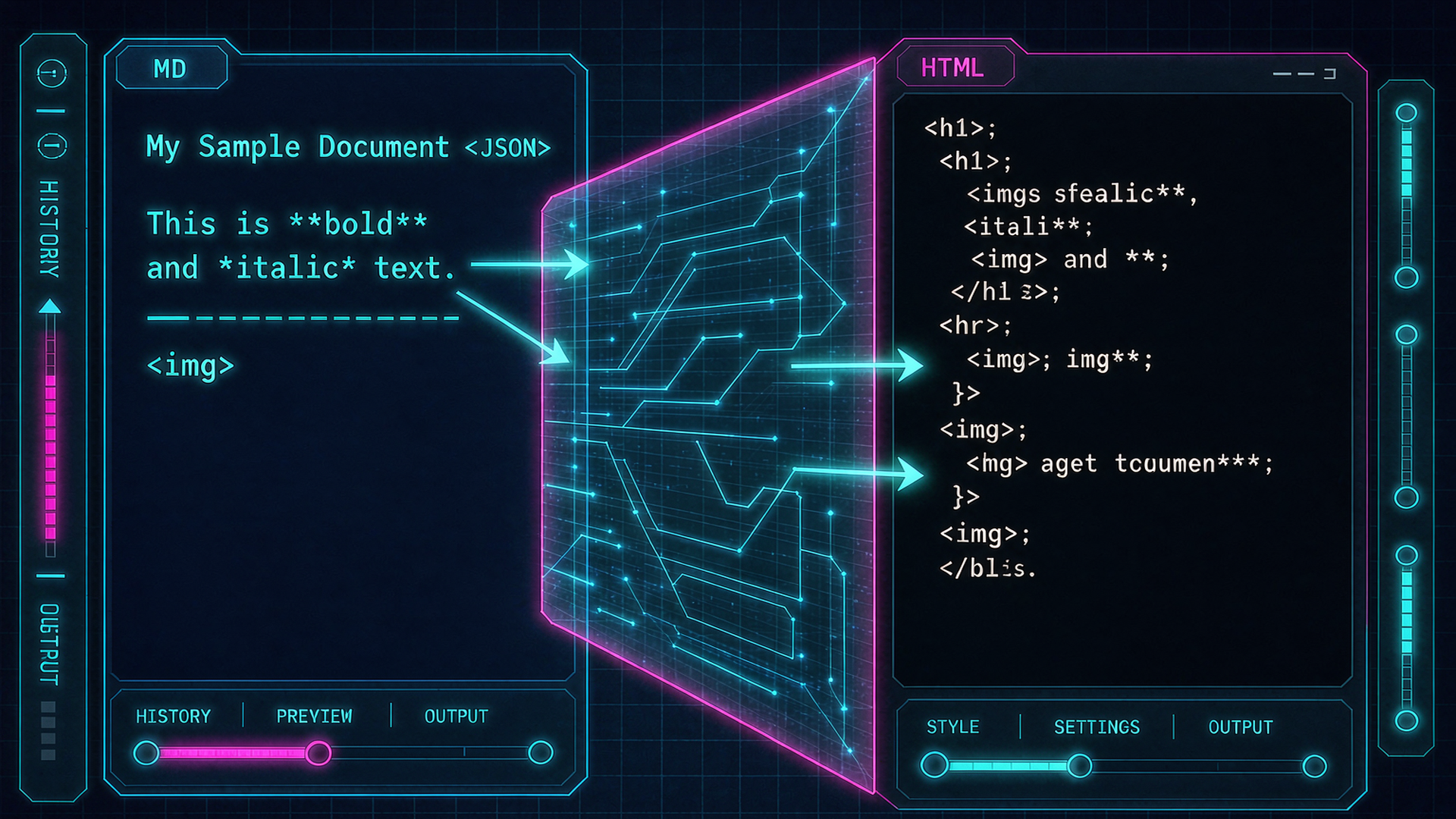
Why Convert Markdown to HTML
Markdown is the fastest way to write structured text, but the web speaks HTML. Converting Markdown to HTML is how your docs, notes, and posts become something a browser can render. The best free markdown to html converter keeps that writing publishable without uploading a single file. Writers love Markdown because it stays out of the way, and the conversion is what makes that writing publishable.
The use cases are broad. Content teams paste Markdown into a CMS and need clean HTML that will not break the layout. Marketers build email templates in Markdown, then convert to the HTML their sender accepts. Developers write README files and documentation in Markdown and ship the rendered HTML to a static site. In each case, the converter is the bridge between draft and delivery.
A bad conversion leaves stray tags, broken tables, or inline styles that fight your CSS. A good one produces semantic, clean HTML you can drop in and forget. The difference shows up months later when you redesign the site and the old converted content still behaves. Choose the converter by the HTML it emits, not just by the speed of the click.
Elena, a technical writer at a fintech, learned this when a redesign broke a hundred converted pages. The old converter had wrapped every doc in a div with inline styles, so the new CSS could not reach the text. She rebuilt the library from the original Markdown in a weekend, then switched to a wrapper-free converter. The lesson stuck: the HTML a tool emits is a debt you pay later, so choose the one that owes you nothing.
What to Look For
Live preview is the first feature worth having. You want to see the rendered HTML as you type, not after a round trip to a server. GFM support matters next: GitHub Flavored Markdown tables and fenced code blocks appear constantly in docs, and a converter that drops them produces broken pages. Check that tables render as real table elements and code blocks keep their language class.
Raw HTML output is the quiet requirement. Some tools wrap everything in a styled div you cannot remove, which poisons your stylesheet. You want the clean tags, not a branded container. No upload protects your text, and no signup keeps the loop fast. For confidential docs, a browser-only tool that never sends your file to a server is the safe choice, which is exactly the angle that separates the best free tools.
Batch and file size round out the list. If you convert a whole folder of docs, a tool that chokes on large files wastes your afternoon. We weighted live preview and GFM correctness above all, because a converter that mangles a table is worse than no converter. Privacy and clean output came next, since both decide whether the HTML is safe to ship.
A quick way to rank a converter is to convert the same sample in two tools and diff the HTML. If one adds a wrapper or renames your classes, that is the tool fighting your system. The one that produces the smallest, cleanest output wins, even if its interface is plainer. Features are nice, but the HTML is the product, and clean HTML is what your future self will thank you for.
8 Best Free Markdown to HTML Converters
Dillinger
Dillinger is a browser-based Markdown editor with live preview and one-click export to HTML. You write on the left, see the render on the right, and download the result without installing anything. The free tier covers daily use and needs no account for basic editing. It connects to cloud storage if you want, but you can stay fully local. For a quick, no-frills conversion with a preview pane, Dillinger is the friendly default most writers meet first.
StackEdit
StackEdit is a fuller Markdown editor that syncs with Google Drive and Dropbox and renders GitHub Flavored Markdown with tables and code blocks. The live preview is accurate, and the GFM support is among the best of the free editors. It is free in the browser, with an account optional for sync. The interface is busier than Dillinger, but the output quality and the sync make it a favorite for people who live in Markdown all day.
Marked.js
Marked.js is a JavaScript library that converts Markdown to HTML directly in the browser, which makes it the engine behind many other tools. It is free and open source, and because it runs client-side, your text never leaves the page. Developers embed it in their own apps for instant conversion. For a writer, it matters less as a standalone tool and more as proof that client-side, no-upload conversion is fast and private by design.
CommonMark
The CommonMark demo is the reference converter for the CommonMark spec, which is the strict, unambiguous flavor of Markdown. Paste your text and get spec-correct HTML with no signup and no upload. It is browser-based and ideal when you need to know that your syntax is valid, not just pretty. It lacks the bells of a full editor, but for correctness and a clean render it is the neutral arbiter you can trust when two tools disagree.
Glint AI Markdown to HTML
Glint AI Markdown to HTML is our pick for the no-upload, browser-only writer. It runs entirely in your browser, needs no account, and never sends your file to a server. You paste Markdown, watch the live preview, and copy clean raw HTML with no wrapper divs. There is no paywall and no email form. For confidential docs, that client-side design is the edge. Open the Glint AI Markdown to HTML converter to try it.
Markdown Here
Markdown Here renders Markdown inside email clients like Gmail, so you can write a message in Markdown and send it as formatted HTML. It is a free browser extension with no upload of your text beyond the email itself. The use case is narrow but powerful for people who live in email. GFM tables and code blocks render, which is rare for email tools. It earns a spot for solving the one problem, email, that most converters ignore entirely.
Pandoc
Pandoc is the universal document converter, turning Markdown into HTML and dozens of other formats with unmatched control. The command line is free and open source, and online wrappers expose it in the browser. It handles complex documents, citations, and custom templates better than any web tool. The catch is server-side processing in the wrappers, so avoid pasting confidential text there. For public, complex docs, Pandoc is the heavy lifter of the list.
Browserling Markdown to HTML
Browserling offers a quick online Markdown to HTML converter that renders your text in the browser with no signup. It is free for basic use and handy when you want a fast, no-account paste-and-copy. The output is clean enough for simple docs, though it lacks the live sync of a full editor. Treat it as a backup converter for one-off jobs. For sensitive documents, prefer a fully client-side tool, but for public snippets Browserling gets you out the door quickly.
GFM Tables and Code Blocks: Which Tools Get It Right
GitHub Flavored Markdown tables are where free converters split. A tool that renders a table as a series of paragraphs silently breaks your documentation, and you may not notice until a reader flags it. StackEdit, Glint AI, and CommonMark handle GFM tables correctly, emitting real table elements with proper headers and cells.
Fenced code blocks are the second fault line. The converter must keep the language class so your syntax highlighter can color the code, and it must escape inner HTML so a less-than sign does not break the page. Marked.js and Glint AI preserve these details because they render in the browser the same way the final page will. Always paste a table and a code block through a converter before trusting it with a real document.
The safe test is boring but effective: write one table, one fenced block, and one nested list, convert, and read the HTML. If those three render, the tool will handle your docs. If any one fails, move on. Glint AI Markdown to HTML passes this test while keeping your text local, which is why it is our default for docs that are not public.
There is also the nested list trap. Many free converters flatten a nested list or drop the indentation, which quietly changes the meaning of procedural docs. Test a two-level list alongside the table and code block. Glint AI and StackEdit preserve nesting because they render in the browser the way the page will. A converter that fails nesting will fail your docs when it matters most, usually in a step a reader skips and then gets wrong.
Comparison Table
The table below summarizes what each free converter gives you. Read the Privacy column before pasting anything confidential.
| Tool | Free limit | Signup | Privacy |
|---|---|---|---|
| Dillinger | Free basic | None | Browser |
| StackEdit | Free, sync optional | Optional | Browser |
| Marked.js | Free, open source | None | Client-side |
| CommonMark | Free | None | Browser |
| Glint AI | Unlimited | None | Browser, client-side |
| Markdown Here | Free extension | None | Browser |
| Pandoc | Free CLI, wrappers vary | Varies | Server-side wrappers |
| Browserling | Free basic | None | Browser |
Only Glint AI and Marked.js keep processing fully client-side with no account, and Glint AI adds a clean raw HTML export with live preview. That combination is why it tops our list for private, publish-ready docs.
How to Embed Clean HTML Into Your CMS
Clean HTML is only useful if it drops into your CMS without a fight. Paste the converted output into the HTML view, not the visual editor, so your CMS does not re-wrap it in its own tags. Strip any wrapper div the converter added before pasting, because that div is where layout bugs are born. A clean converter like Glint AI emits no wrapper, so this step is trivial.
Keep your Markdown as the source of truth. Store the .md file, convert on publish, and you can redesign the site without touching the originals. For docs and API pages, pair the converter with a formatter: convert the Markdown, then run the output through our JSON formatter when the page embeds sample API responses. Our Markdown to HTML workflow guide walks the full pipeline from draft to published page with examples.
One more habit pays off: preview the pasted HTML in the CMS on both desktop and mobile before you hit publish. A table that looked fine in the converter can overflow a narrow column. Catching it there beats a reader screenshotting the break. The converter's job ends at clean HTML; yours ends at clean rendering.
For teams, a shared style guide for Markdown pays off here. Agree on heading levels, table format, and code fence languages so every converted page looks the same in the CMS. The converter cannot enforce consistency, but a clean converter makes a consistent source trivial to publish. Pair the guide with Glint AI Markdown to HTML and the publish step becomes a paste, a preview, and a click, with no formatting surprises across authors.
Spotlight: Glint AI Markdown to HTML, Live Preview, Browser-Only, No Upload
We'll be honest about our pick: Glint AI Markdown to HTML is the one we trust. Most converters either upload your file to a server or bury the output in a styled wrapper. Glint AI does neither. You paste Markdown, watch the live preview, and copy clean raw HTML with no account and no upload. No paywall, no email form blocking the door.
Privacy is the whole point of this pick. Conversion happens in your browser, so your unpublished docs, client briefs, or internal runbooks never leave your machine. A server-side converter can't promise that, and on confidential work that gap is everything. When a tool saves what you paste, that text can surface in a breach or a training set you never approved.
It's fast because nothing gets uploaded. No spinning wheel, no wait for a server round trip. You also get live preview and GFM-correct tables and code blocks in the same place, so the output is both private and correct. Pair it with our workflow guide when you need the full publish pipeline, and you have a complete free system with no accounts to manage.
Try the Glint AI Markdown to HTML converter the next time a CMS asks for HTML. Paste, preview, copy, done, with your file never leaving the tab. For a deeper look at documentation pipelines, our markdown documentation workflow post covers writing docs as Markdown at scale.
FAQ and Verdict
The best free Markdown to HTML converter depends on your job. Writing docs all day? StackEdit. Need spec correctness? CommonMark. Handling confidential files? Glint AI Markdown to HTML, for its browser-only, no-upload privacy. All three are free to start and none ask for a card.
Our winner is Glint AI, because it removes the two risks that matter most: the privacy leak and the wrapper div. You get fast, GFM-correct conversion with clean raw HTML and your file never leaving your browser. Open it once and keep it in your bookmarks as the converter you reach for before every publish.
Whichever tool you choose, keep the Markdown as your source and convert on publish, not the other way around. That one habit saves you from locked-in, hard-to-edit HTML and makes site redesigns painless. The best free markdown to html converter is the one that emits clean raw HTML and never locks your source away. Free converters are too cheap to skip, so build the convert-then-publish step into your process and ship clean pages every time.