Productivity

How to Summarize a PDF in Minutes (Without Reading Every Page)

Updated Aug 10, 2026 · 7 min read · by Glint AI

Research papers, annual reports, and legal PDFs are packed with pages you don't need. The goal is not to read faster — it's to find the 10% that matters and ignore the rest. Here's how to summarize a PDF locally in your browser using Glint AI's PDF Summarizer, so your documents never leave your machine.

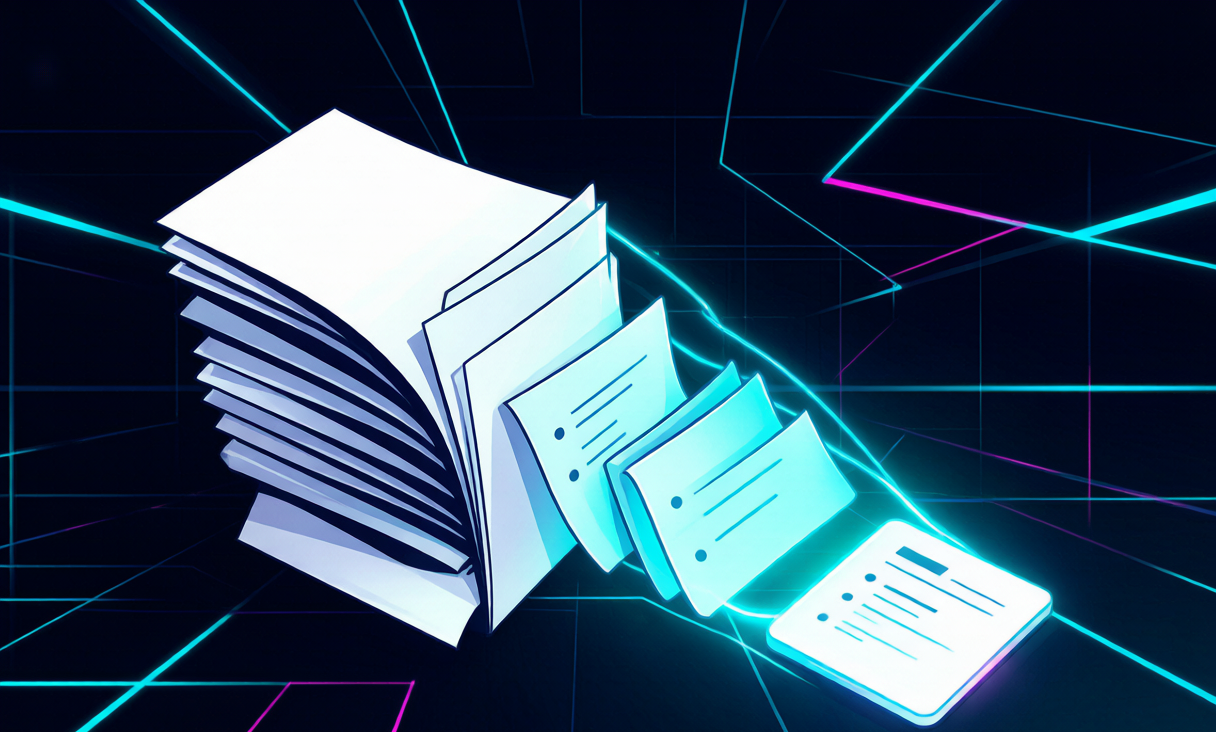
Cyberpunk illustration of a thick PDF document condensing into a small glowing summary card

When PDF summaries save the day

Not every PDF deserves a close read. A 60-page market report might contain three useful charts and one conclusion. A 30-page research paper might bury the method and results in sections you can skim. Summarization helps you decide where to spend your real attention.

The best use cases are triage, not replacement: identify the sections worth reading, then read those carefully. If you rely on a summary alone for high-stakes decisions, you miss nuance.

Extractive vs. abstractive summarization

TypeHow it worksBest for
ExtractivePicks the most important existing sentences.Accuracy. The summary is always verbatim from the source.
AbstractiveGenerates new sentences that capture the meaning.Smooth reading. Risk of slight distortion.

Glint AI's PDF Summarizer uses an extractive approach. It identifies the sentences that carry the most information and returns them in order. That means no hallucinated claims and no reinterpretation — just the source, shortened.

How to use the PDF Summarizer

1
Open the tool and select your PDF. The file stays in your browser.
2
Wait for extraction. pdf.js parses the text locally.
3
Review the key sentences. The summary shows the highest-value excerpts.
4
Jump to the full sections that matter instead of reading every page.

Privacy matters more than speed

Most "free" PDF tools upload your file to a server. That is fine for a restaurant menu, but not for contracts, medical records, financial statements, or unpublished research. Glint AI's tool runs entirely in your browser using WASM and pdf.js. The file is never transmitted.

Security note: If you can't see a clear privacy policy or the tool requires an upload, assume the document is being stored or analyzed on a remote server.

Pair it with the article summarizer

For web-based sources, use the article summarizer guide. For PDFs, use this tool. Together they cover the two formats researchers deal with most. If you also need a word or character count for the summary, the word counter guide has you covered.

Keep reading

→ How to Summarize Long Articles Without Losing the Meaning → Why a Word Counter Is the Most Underrated Writing Tool → What Reading Ease Score Your Landing Page Actually Needs → Try all free tools on Glint AI

Frequently asked questions

Can I summarize a PDF for free? Yes. Glint AI's PDF Summarizer is free and runs in your browser.

Is my PDF uploaded to a server? No. The tool uses pdf.js in the browser to extract text locally. Your file never leaves your device.

What is extractive summarization? It selects the most important existing sentences from the document instead of generating new text.

What kinds of PDFs work best? Text-based PDFs work best. Scanned image PDFs need OCR first, which this tool does not perform.

How accurate is the summary? The summary preserves the original sentences, so it is as accurate as the source — but it cannot replace reading the full document for nuance.